Lesson 3. Access PRISM datasets and visualize climate data in 3d with lexcube

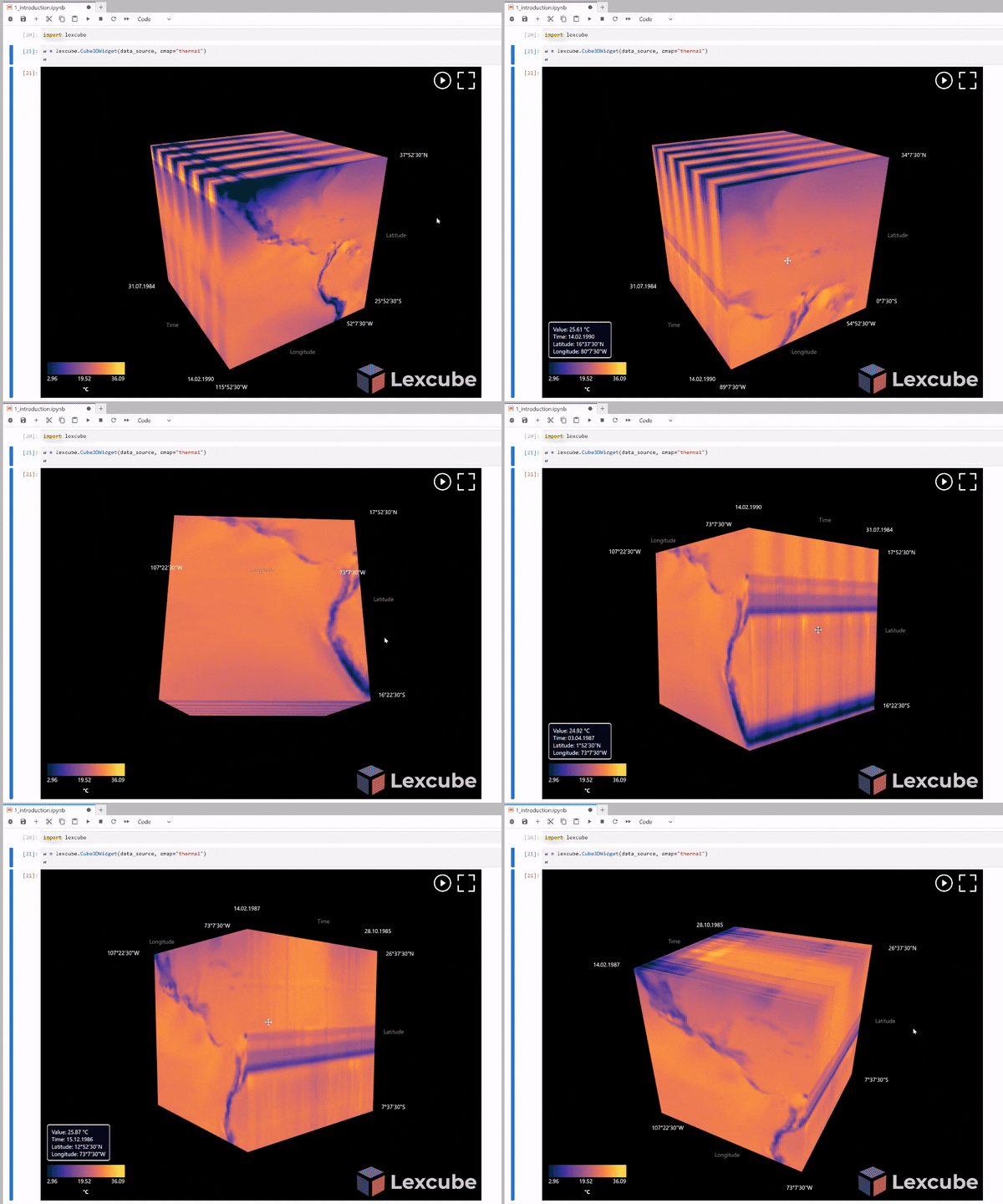
Objectives:
- Learn how to list files and objects inside an AWS S3 bucket
- Visualize PRISM climate data in 2D using
numpy - Create a Data Cube (3D) with Climate Data using
xarray - Read/Write
xarraydatasets inzarrformat from an AWS S3 bucket - 3D Visualization by
Lexcube
Step 1. Import all the necessary libraries
import boto3
import rasterio
import matplotlib.pyplot as plt
import numpy as np
import xarray as xr
import os
import pandas as pd
import s3fs
import lexcube
import zarr

import warnings #dont print warnings
warnings.filterwarnings('ignore')

# allow unsigned requests to public buckets when using boto3
from botocore import UNSIGNED
from botocore.config import Config
# allow unsigned requests to public buckets when using os.environ
os.environ["AWS_NO_SIGN_REQUEST"] = "YES"
Step 2. Get a list of GeoTIFF files from an AWS S3 folder
To get a list of all .tif files inside a specific S3 "folder" (prefix), you need to use the boto3 library to list all objects with the specified prefix and then filter the results client-side to keep only those ending with .tif. S3 does not support filtering by suffix on the service end.
def list_tif_files_in_s3_folder(bucket_name, folder_prefix):
    """
    Lists all .tif files within a specific folder prefix in an S3 bucket.

    :param bucket_name: The name of the S3 bucket.
    :param folder_prefix: The 'folder' path (prefix) within the bucket.
    :return: A list of S3 object keys (file names) ending with '.tif'.
    """
    s3_client = boto3.client('s3', config=Config(signature_version=UNSIGNED))
    tif_files = []

    # Use a paginator to handle cases with more than 1000 objects
    paginator = s3_client.get_paginator('list_objects_v2')
    pages = paginator.paginate(Bucket=bucket_name, Prefix=folder_prefix)

    for page in pages:
        if 'Contents' in page:
            for obj in page['Contents']:
                # Client-side filtering for the .tif suffix
                if obj['Key'].lower().endswith('.tif') or obj['Key'].lower().endswith('.tiff'):
                    tif_files.append(obj['Key'])
    return tif_files

# --- Example Usage ---
# Replace with your bucket name and folder prefix
s3_bucket_name = 'ocs-training-2026'
s3_folder_prefix = 'advanced/PRISM/unzipped/' # Ensure a trailing slash for a specific folder

# Get the list of .tif files
geotiff_files = list_tif_files_in_s3_folder(s3_bucket_name, s3_folder_prefix)

# Print the list of files
if geotiff_files:
    print(f"Found {len(geotiff_files)} .tif files in s3://{s3_bucket_name}/{s3_folder_prefix}:")
    for file_key in geotiff_files:
        print(file_key)
else:
    print(f"No .tif files found in s3://{s3_bucket_name}/{s3_folder_prefix}")
Found 26 .tif files in s3://ocs-training-2026/advanced/PRISM/unzipped/:
advanced/PRISM/unzipped/prism_tmean_us_25m_200007.tif
advanced/PRISM/unzipped/prism_tmean_us_25m_200107.tif
advanced/PRISM/unzipped/prism_tmean_us_25m_200207.tif
advanced/PRISM/unzipped/prism_tmean_us_25m_200307.tif
advanced/PRISM/unzipped/prism_tmean_us_25m_200407.tif
advanced/PRISM/unzipped/prism_tmean_us_25m_200507.tif
advanced/PRISM/unzipped/prism_tmean_us_25m_200607.tif
advanced/PRISM/unzipped/prism_tmean_us_25m_200707.tif
advanced/PRISM/unzipped/prism_tmean_us_25m_200807.tif
advanced/PRISM/unzipped/prism_tmean_us_25m_200907.tif
advanced/PRISM/unzipped/prism_tmean_us_25m_201007.tif
advanced/PRISM/unzipped/prism_tmean_us_25m_201107.tif
advanced/PRISM/unzipped/prism_tmean_us_25m_201207.tif
advanced/PRISM/unzipped/prism_tmean_us_25m_201307.tif
advanced/PRISM/unzipped/prism_tmean_us_25m_201407.tif
advanced/PRISM/unzipped/prism_tmean_us_25m_201507.tif
advanced/PRISM/unzipped/prism_tmean_us_25m_201607.tif
advanced/PRISM/unzipped/prism_tmean_us_25m_201707.tif
advanced/PRISM/unzipped/prism_tmean_us_25m_201807.tif
advanced/PRISM/unzipped/prism_tmean_us_25m_201907.tif
advanced/PRISM/unzipped/prism_tmean_us_25m_202007.tif
advanced/PRISM/unzipped/prism_tmean_us_25m_202107.tif
advanced/PRISM/unzipped/prism_tmean_us_25m_202207.tif
advanced/PRISM/unzipped/prism_tmean_us_25m_202307.tif
advanced/PRISM/unzipped/prism_tmean_us_25m_202407.tif
advanced/PRISM/unzipped/prism_tmean_us_25m_202507.tif
Step 3. Visualize Climate Data (2D)
Let's start our big data viz journey by using some sample climate datasets in GeoTIFF format, downloaded from the PRISM online repository by Oregon State University. If you are interested in how to programmatically download these data, please refer to this blog post. To simplify things, we pre-downloaded the data for this training. In this step, we will read a raster file of the mean air temperature for the CONUS extent for July of 2025, replace -9999 values with NaN, create a mesh grid for latitude and longitude, and set up the titles, x-axis and y-axis labels, and color ramp:
#s3_url = 's3://your-bucket-name/path/to/your/image.tif'
s3_url = 's3://ocs-training-2026/advanced/PRISM/unzipped/prism_tmean_us_25m_202507.tif'

# Open the raster file
with rasterio.open(f'{s3_url}') as src:
    # Read the temperature data from the first band
    temp = src.read(1)
    # Replace -9999 values with NaN
    temp[temp == -9999] = np.nan
    # Get the latitude and longitude coordinates
    lon_min, lat_min, lon_max, lat_max = src.bounds
    lat_res, lon_res = src.res
    lats = np.arange(lat_min, lat_max, lat_res)
    lons = np.arange(lon_min, lon_max, lon_res)
    lons, lats = np.meshgrid(lons, lats)

    # Set the minimum and maximum values of the color scale
    vmin = 10
    vmax = 30

    # Plot the temperature data with a color ramp
    cmap = plt.colormaps.get_cmap('jet')
    cmap.set_bad('white')

    # Set the size of the plot
    fig, ax = plt.subplots(figsize=(10, 7))

    # Plot the temperature data with a color ramp
    im = ax.imshow(temp, cmap=cmap, vmin=vmin, vmax=vmax, extent=[lons.min(), lons.max(), lats.min(), lats.max()])

    # Add a colorbar with a smaller size
    cbar = plt.colorbar(im, ax=ax, shrink=0.5)

    # Set the x and y axis labels
    ax.set_xlabel('Longitude')
    ax.set_ylabel('Latitude')

    # Set the title of the plot
    ax.set_title('Temperature for July')

    # Show the plot
    plt.show()

Step 4. Create a Data Cube (3D) with Climate Data using xarray
To create the data cube with climate data, we will use the GeoTIFF files from the PRISM climate datasets pre-downloaded for this training. You should have the mean air temperature of the US for July from 2000 to 2025 in GeoTIFF format in your content folder. Before reading the raster files in a loop, we need to create a list of date ranges for those GeoTIFF files, as the GeoTIFF files cover July from 2000 to 2025. Next, we will read each raster file using the rasterio package, convert the raster file to Xarray with latitude and longitude extracted from each file, and create a data cube by appending the 2D data from each raster file. Finally, we’ll set the time in the data cube based on the time range we generated and save it as a Zarr file:
s3_bucket_name = 'ocs-training-2026'

# Create a time list
time = pd.date_range(start='2000-07-01', end='2025-07-01', freq='YS-JUL')

# Read raster files and create a list of xarray DataArrays
data_arrays = []
for file in geotiff_files:
    with rasterio.open(os.path.join('s3://', s3_bucket_name, file)) as src:
        data = src.read(1)  # Read the first band
        height, width = src.shape
        y_values = np.arange(height) * src.transform[4] + src.transform[5]
        x_values = np.arange(width) * src.transform[0] + src.transform[2]
        da = xr.DataArray(data, dims=("y", "x"), coords={"y": y_values, "x": x_values}, name="air_temperature")
        data_arrays.append(da)

# Combine DataArrays into a single xarray Dataset
ds = xr.concat(data_arrays, dim="time")
ds["time"] = ("time", time)  # Assign month numbers as time coordinates
ds
<xarray.DataArray 'air_temperature' (time: 26, y: 621, x: 1405)> Size: 91MB
array([[[-9999., -9999., -9999., ..., -9999., -9999., -9999.],
        [-9999., -9999., -9999., ..., -9999., -9999., -9999.],
        [-9999., -9999., -9999., ..., -9999., -9999., -9999.],
        ...,
        [-9999., -9999., -9999., ..., -9999., -9999., -9999.],
        [-9999., -9999., -9999., ..., -9999., -9999., -9999.],
        [-9999., -9999., -9999., ..., -9999., -9999., -9999.]],

       [[-9999., -9999., -9999., ..., -9999., -9999., -9999.],
        [-9999., -9999., -9999., ..., -9999., -9999., -9999.],
        [-9999., -9999., -9999., ..., -9999., -9999., -9999.],
        ...,
        [-9999., -9999., -9999., ..., -9999., -9999., -9999.],
        [-9999., -9999., -9999., ..., -9999., -9999., -9999.],
        [-9999., -9999., -9999., ..., -9999., -9999., -9999.]],

       [[-9999., -9999., -9999., ..., -9999., -9999., -9999.],
        [-9999., -9999., -9999., ..., -9999., -9999., -9999.],
        [-9999., -9999., -9999., ..., -9999., -9999., -9999.],
        ...,
...
        [-9999., -9999., -9999., ..., -9999., -9999., -9999.],
        [-9999., -9999., -9999., ..., -9999., -9999., -9999.],
        [-9999., -9999., -9999., ..., -9999., -9999., -9999.]],

       [[-9999., -9999., -9999., ..., -9999., -9999., -9999.],
        [-9999., -9999., -9999., ..., -9999., -9999., -9999.],
        [-9999., -9999., -9999., ..., -9999., -9999., -9999.],
        ...,
        [-9999., -9999., -9999., ..., -9999., -9999., -9999.],
        [-9999., -9999., -9999., ..., -9999., -9999., -9999.],
        [-9999., -9999., -9999., ..., -9999., -9999., -9999.]],

       [[-9999., -9999., -9999., ..., -9999., -9999., -9999.],
        [-9999., -9999., -9999., ..., -9999., -9999., -9999.],
        [-9999., -9999., -9999., ..., -9999., -9999., -9999.],
        ...,
        [-9999., -9999., -9999., ..., -9999., -9999., -9999.],
        [-9999., -9999., -9999., ..., -9999., -9999., -9999.],
        [-9999., -9999., -9999., ..., -9999., -9999., -9999.]]],
      dtype=float32)
Coordinates:
  * y        (y) float64 5kB 49.94 49.9 49.85 49.81 ... 24.23 24.19 24.15 24.1
  * x        (x) float64 11kB -125.0 -125.0 -124.9 ... -66.6 -66.56 -66.52
* time (time) datetime64[ns] 208B 2000-07-01 2001-07-01 ... 2025-07-01Step 5a. Write the climate data cube as a zarr dataset to an AWS S3 bucket
⚠️ NOTE: THE FOLLOWING CODE BLOCK SAVES THE DATASET TO S3 AS A ZARR FILE. FOR SECURITY REASONS, WE HAVE REMOVED 'WRITE' ACCESS TO THE PUBLIC BUCKET USED IN THIS TRAINING. YOU CAN USE THIS CODE TO SAVE TO YOUR OWN S3 BUCKET WITHIN TNC's AWS ACCOUNT
def write_zarr_to_s3(dataset: xr.Dataset, s3_path: str, s3_options: dict):
    """
    Writes an xarray Dataset to a Zarr store on S3, handling Zarr versions.

    Args:
        dataset: The xarray Dataset to write.
        s3_path: The full S3 path (e.g., "s3://your-bucket/your-dataset.zarr").
        s3_options: Dictionary of options for s3fs (e.g., {'anon': False} for credentials).
    """

    # 1. Check the installed Zarr-Python major version
    # Zarr-Python 3 is the current stable release that fully supports v3.
    zarr_major_version = int(zarr.__version__.split('.')[0])

    # 2. Determine the zarr format to use
    if zarr_major_version >= 3:
        # Zarr-Python 3 defaults to format v3, but we can be explicit.
        # Xarray's to_zarr method uses 'zarr_format' as the argument name.
        # NOTE: replace zarr_version with zarr_format when using newer versions (>=2024.9.1)
        format_arg = {'zarr_version': 3, 'consolidated': False} # Consolidated metadata is generally not needed/supported for v3.
        print(f"Detected Zarr v{zarr.__version__}. Writing with Zarr v3 format.")
    else:
        # For Zarr-Python 2.x, we must use version 2 format.
        # NOTE: replace zarr_version with zarr_format when using newer versions (>=2024.9.1)
        format_arg = {'zarr_version': 2, 'consolidated': True} # Consolidation is common for v2 performance on S3.
        print(f"Detected Zarr v{zarr.__version__}. Writing with Zarr v2 format.")

    # 3. Set up the S3 filesystem and store
    # Ensure s3fs is configured correctly. For anonymous access:
    # fs = s3fs.S3FileSystem(anon=True)
    # For credentials, you might need:
    # fs = s3fs.S3FileSystem(key='your_key', secret='your_secret')
    fs = s3fs.S3FileSystem(**s3_options)
    store = s3fs.S3Map(root=s3_path, s3=fs, create=True)

    # 4. Write the dataset to S3 using xarray's to_zarr method
    # Use mode="w" to create a new store or overwrite an existing one.
    try:
        dataset.to_zarr(store=store, mode="w", **format_arg)
        print(f"Successfully wrote dataset to {s3_path}")
    except Exception as e:
        print(f"An error occurred during writing: {e}")

# Define S3 path and options
# NOTE: Replace with your actual S3 path and configure s3_options for authentication.
# The following example uses anonymous access, suitable for public buckets or local testing (e.g., minio)
# s3_uri = 's3://your-bucket-name/path/to/your/dataset.zarr'
s3_uri = 's3://ocs-training-2026/advanced/PRISM/climate.zarr'
s3_options = {'anon': False} # False ensures credentials are set in environment variables or passed explicitly.

write_zarr_to_s3(ds, s3_uri, s3_options)

# Verify by opening the dataset back (optional)
try:
    opened_ds = xr.open_zarr(store=s3fs.S3Map(root=s3_uri, s3=s3fs.S3FileSystem(**s3_options), create=False))
    print("\nSuccessfully read back dataset from S3:")
    print(opened_ds)
except Exception as e:
    print(f"\nCould not read back dataset: {e}")
Detected Zarr v2.18.7. Writing with Zarr v2 format.
Successfully wrote dataset to s3://ocs-training-2026/advanced/PRISM/climate.zarr

Successfully read back dataset from S3:
<xarray.Dataset> Size: 91MB
Dimensions:          (time: 26, y: 621, x: 1405)
Coordinates:
  * time             (time) datetime64[ns] 208B 2000-07-01 ... 2025-07-01
  * x                (x) float64 11kB -125.0 -125.0 -124.9 ... -66.56 -66.52
  * y                (y) float64 5kB 49.94 49.9 49.85 49.81 ... 24.19 24.15 24.1
Data variables:
    air_temperature  (time, y, x) float32 91MB dask.array<chunksize=(4, 156, 352), meta=np.ndarray>
Step 5b. Read the climate data cube as a zarr dataset from an existing AWS S3 bucket
Similar to the previous section, we can read the saved Zarr file using the following:
# Define S3 path and options
# NOTE: Replace with your actual S3 path and configure s3_options for authentication.
# The following example uses anonymous access, suitable for public buckets or local testing (e.g., minio)
# s3_uri = 's3://your-bucket-name/path/to/your/dataset.zarr'
s3_uri = 's3://ocs-training-2026/advanced/PRISM/climate.zarr'
s3_options = {'anon': True} # Change to False and ensure credentials are set in environment variables or passed explicitly

# Check the installed Zarr-Python major version
# Zarr-Python 3 is the current stable release that fully supports v3.
zarr_major_version = int(zarr.__version__.split('.')[0])
if zarr_major_version >= 3:
    consolidated = False # Consolidated metadata is generally not needed/supported for v3.
else:
    consolidated = True # Consolidation is common for v2 performance on S3.

# Open the Zarr dataset
try:

    ds = xr.open_zarr(store=s3fs.S3Map(root=s3_uri, s3=s3fs.S3FileSystem(**s3_options), create=False), consolidated=consolidated)
    print("\nSuccessfully read Zarr dataset from S3:")
    print(ds)
except Exception as e:
    print(f"\nCould not read back dataset: {e}")

#subset the zarr dataset
da = ds["air_temperature"][:,:,:]
da
Successfully read Zarr dataset from S3:
<xarray.Dataset> Size: 91MB
Dimensions:          (time: 26, y: 621, x: 1405)
Coordinates:
  * time             (time) datetime64[ns] 208B 2000-07-01 ... 2025-07-01
  * x                (x) float64 11kB -125.0 -125.0 -124.9 ... -66.56 -66.52
  * y                (y) float64 5kB 49.94 49.9 49.85 49.81 ... 24.19 24.15 24.1
Data variables:
    air_temperature  (time, y, x) float32 91MB dask.array<chunksize=(4, 156, 352), meta=np.ndarray>
<xarray.DataArray 'air_temperature' (time: 26, y: 621, x: 1405)> Size: 91MB
dask.array<open_dataset-air_temperature, shape=(26, 621, 1405), dtype=float32, chunksize=(4, 156, 352), chunktype=numpy.ndarray>
Coordinates:
  * time     (time) datetime64[ns] 208B 2000-07-01 2001-07-01 ... 2025-07-01
  * x        (x) float64 11kB -125.0 -125.0 -124.9 ... -66.6 -66.56 -66.52
  * y        (y) float64 5kB 49.94 49.9 49.85 49.81 ... 24.23 24.19 24.15 24.1
If the file is saved correctly, you should see the Xarray details (26 layers in time, 1405 grids on the x-axis, and 621 grids on the y-axis).
Step 6. 3D Visualization with Lexcube
Let's now use the lexcube package to create some nifty 3D visualizations. Now that we have two Zarr files (one based on random numbers and the second based on climate data), we are ready to plot the 3D visualization of these two data cubes. To have a better and more meaningful 3D plot, let’s visualize the second data cube (climate data).
##### This may fail in certain testing environments due to missing notebook widgets
w = lexcube.Cube3DWidget(da,cmap="RdYlBu_r", vmin=0, vmax=30)
w
BONUS Exercise: Let’s zoom in on a given area and look at the mean air temperature for July 2025 displayed on the top layer. Additionally, by hovering your mouse over the latitude and longitude axes, you can see the air temperature for different years. Which year was the warmest? At which coordinates?
Step 7 (BONUS). What Else Can We Do with Lexcube?
Let’s assume you want to clip this plot for a specific location (latitude and longitude) and a specific time. Instead of manually zooming in and out on each axis, which is not very convenient, you can activate the slider by running the following:
w.show_sliders()
with that slider, you can clip your plot for any location and timeframe.
And last but not least, if you want to save the plot in your local folder, you can do so by running the following:
w.savefig(fname="climate.png", include_ui=True, dpi_scale=2.0)
The PNG file will be saved in your folder. If you want to change the color ramp, Lexcube supports many color maps that you can find in the GitHub repository mentioned in the reference section.
Conclusions
We've demonstrated the following concept in this workbook:
- Use
xarrayandzarrto efficiently store chunked, multidimensional gridded spatial data - Visualize 2D and 3D PRISM climate datasets using
xarray,zarr, andlexcube - Access and read/write
zarrdatasets stored in AWS S3
📚 References and Additional Resources
M., Söchting, M. D., Mahecha, D., Montero, and G., Scheuermann, Lexcube: Interactive Visualization of Large Earth System Data Cubes (2023). IEEE Computer Graphics and Applications. doi:10.1109/MCG.2023.3321989.
https://github.com/msoechting/lexcube
https://pubmed.ncbi.nlm.nih.gov/37812545/
https://eo4society.esa.int/2022/05/25/exploring-earth-system-data-with-lexcube/
PRISM Climate Group, Oregon State University, https://prism.oregonstate.edu, date created 1981–2022, accessed 19 Dec 2024.